Free Fire MAX Not Working on Android 12, 13, or 14? Step-by-Step Fixes
Most Free Fire MAX problems on new Android versions are fixed by freeing storage, updating Google Play services, and clearing the game cache. A common mistake is to reinstall the game straight away, which wastes data and often brings the same error back. This guide shows you how to fix Free Fire MAX on Android 12, 13, and 14 step by step, starting with the quickest solutions.
Why Free Fire MAX Has Problems on Newer Android Versions
Android 12, 13, and 14 manage storage, battery, and background apps more strictly than older versions. These changes protect your phone, but they can clash with large games. Free Fire MAX downloads extra resource files after installation, so any limit on storage or background data can stop it.
The Most Common Causes
- Not enough free storage for game files and updates.
- Outdated Google Play Store or Google Play services.
- Corrupted cache after a big update.
- Battery saver or “game optimizer” apps limiting performance.
- Graphics settings too high for the phone’s RAM.
- Unstable internet or a VPN blocking resource downloads.
Quick Checks Before You Start
Spend two minutes on these checks first. They solve a surprising number of problems without any deeper changes.
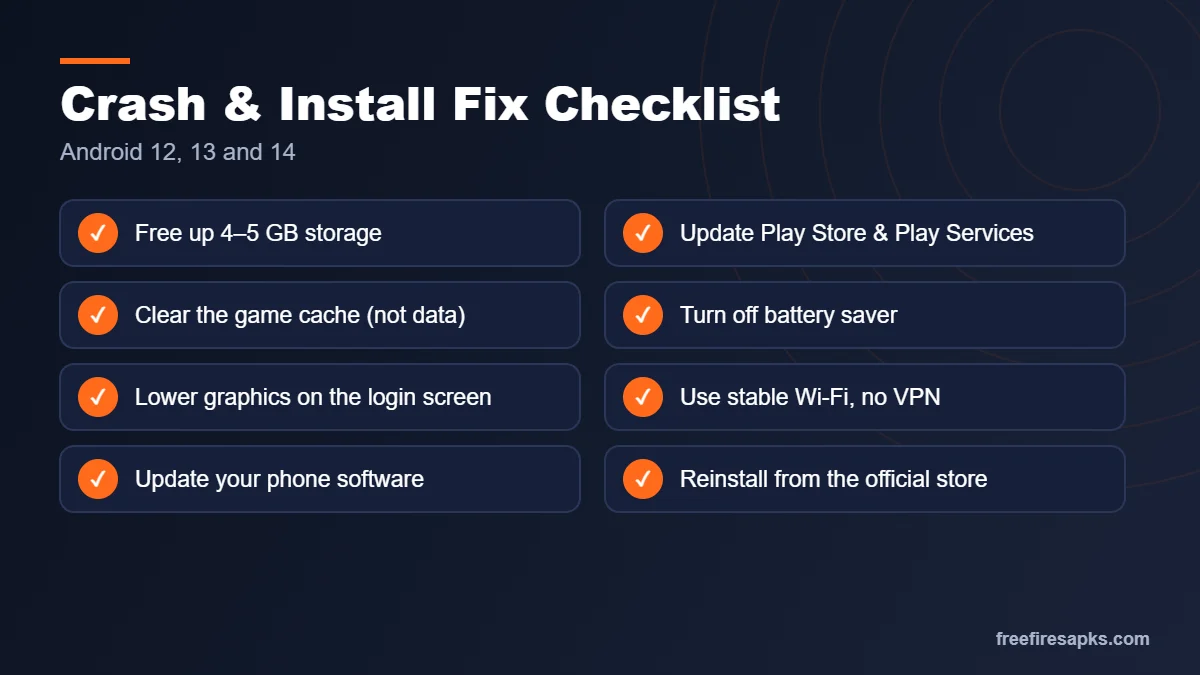
- Restart your phone to clear stuck processes.
- Make sure you have at least 4–5 GB of free storage.
- Connect to stable Wi-Fi and turn off any VPN.
- Check the Play Store for a Free Fire MAX update.
- Check Settings → System for a pending Android update.
Fix 1: “App Not Installed” or “Device Not Compatible”
This error usually appears when storage is low or the Play Store has outdated data. It can also mean your phone does not meet the game’s requirements.
- Free up storage by deleting unused apps, videos, and downloads.
- Open Settings → Apps → Google Play Store → Storage, then tap Clear cache.
- Update Google Play services from its Play Store page.
- Restart the phone and try installing again.
💡 Tip: If the Play Store still says your device is not compatible, install the classic Free Fire instead. It is lighter, and your account and progress stay the same.
Fix 2: Game Crashes on Launch
A crash right after the logo usually points to cache problems or limited memory. Clearing the cache is safe because it keeps your account and settings.
- Go to Settings → Apps → Free Fire MAX → Storage.
- Tap Clear cache. Do not tap Clear data yet.
- Close all background apps.
- Turn off battery saver and any performance-limiting mode.
- Open the game again.
Fix 3: Black Screen or Stuck Loading Screen
A black screen often happens when the graphics setting is too heavy for the phone. Lower the graphics from the settings icon on the login screen. Choose Smooth or Standard and turn off high frame rate. If the screen stays black, force stop the app, restart the phone, and launch again.
Fix 4: Resource Download Stuck or Failing
After installation, the game downloads maps, sounds, and textures. On a weak connection, this progress bar can freeze.
- Switch to stable Wi-Fi and stay close to the router.
- Keep the screen on until the download completes.
- Allow storage permission in the game’s app settings.
- Turn off VPNs and data saver mode.
- If stuck, close the game fully and reopen it to resume.
Fix 5: Lag, Low FPS, and Overheating
Lag is not always a bug. It often means the phone is working too hard. Lower graphics, close background apps, and avoid playing while charging. Remove a thick phone case during long sessions. For more help, see our recommended graphics settings.
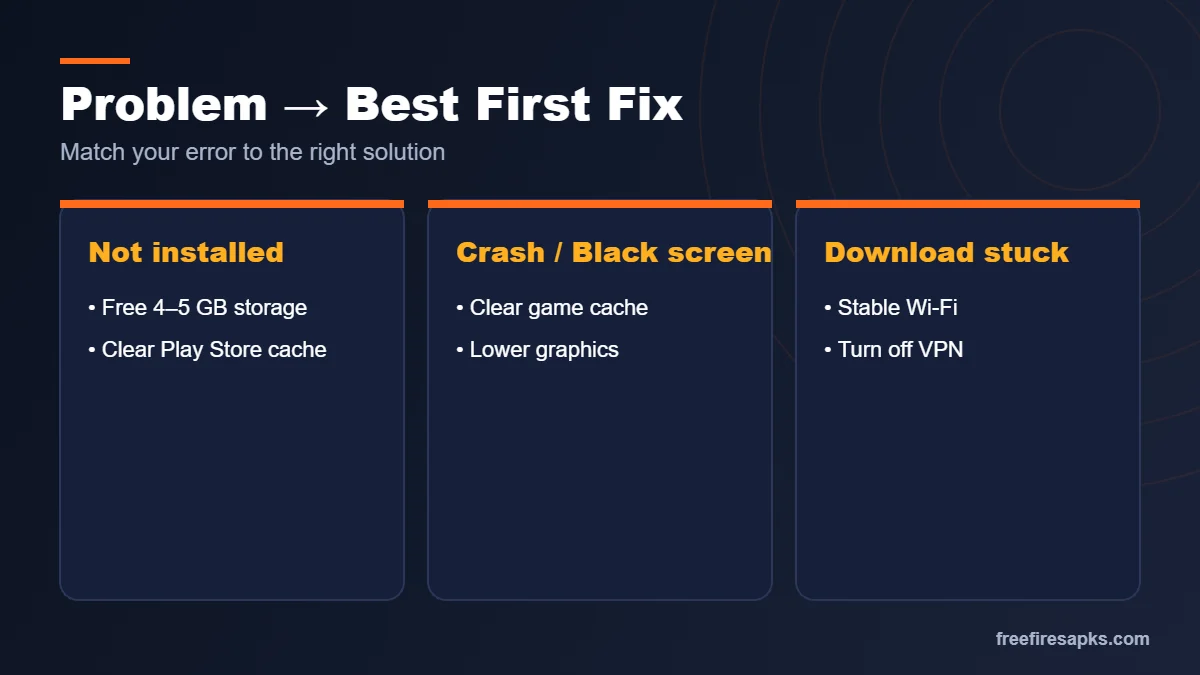
Which Fix Matches Your Problem?
| Problem | Likely Cause | Best First Fix |
|---|---|---|
| App not installed | Low storage or old Play Store data | Free storage, clear Play Store cache |
| Device not compatible | Phone below requirements | Use classic Free Fire |
| Crash on launch | Corrupted cache, low RAM | Clear game cache, close apps |
| Black screen | Graphics too high | Lower graphics on login screen |
| Download stuck | Weak internet or VPN | Stable Wi-Fi, VPN off |
| Lag and heating | Phone overloaded | Lower graphics, avoid charging while playing |
Last Resort: Clean Reinstall Without Losing Progress
Only reinstall after the fixes above fail. First, make sure your account is bound to Google or Facebook. Guest accounts can be lost during a reinstall.
- Open the game profile and confirm your account is linked.
- Uninstall Free Fire MAX.
- Restart your phone.
- Install it again from the official Google Play Store.
- Log in with the same linked account.
Why Unofficial APKs Make These Problems Worse
Downloading the game from random APK sites can cause more crashes, not fewer. These files are often outdated or altered, and Android 12+ may block them. Some also carry malware. Modified files can also get your account banned. Always use the official store listing.
How to Prevent Problems After Future Updates
- Keep 2–3 GB of extra storage free at all times.
- Update the game on Wi-Fi as soon as a patch arrives.
- Update Android and Google Play services regularly.
- Avoid “booster” apps that force-close system services.
- Keep your account linked so a reinstall is never risky.
Frequently Asked Questions
Does Free Fire MAX support Android 12, 13, and 14?
Yes, on phones that meet its requirements. Problems usually come from storage, cache, or settings, not the Android version itself.
Will clearing cache delete my progress?
No. Clearing cache only removes temporary files. Your progress is saved on Garena’s servers through your linked account.
Why does the Play Store say my device is not compatible?
Your phone may be below the game’s requirements. Try the classic Free Fire, which is lighter and uses the same account.
How much storage does Free Fire MAX need?
Keep around 4 GB free for the game and its resources, plus extra space for future updates.
Why does the game crash after an update?
Old cache files can conflict with new game files. Clear the cache and restart your phone.
Can a VPN cause download problems?
Yes. VPNs can slow or block resource downloads and raise ping. Turn it off while downloading and playing.
Why is Free Fire MAX lagging on my phone?
Your graphics may be too high, or background apps may use too much RAM. Lower graphics and close other apps.
Should I use a game booster app?
Usually not. Many booster apps force-close services and cause more problems. Android’s built-in game mode is safer.
Is it safe to download Free Fire MAX APK from other sites?
It is risky. Unofficial APK files may be outdated or contain malware. Use the Google Play Store.
What if nothing works?
Do a clean reinstall with a linked account. If the issue continues, contact Garena support from inside the game.
Final Verdict
Free Fire MAX runs well on Android 12, 13, and 14 when the phone has enough storage, updated Google services, and sensible graphics. Start with quick checks, then clear the cache before thinking about a reinstall. Keep your account linked, and download only from official stores. For everything else, visit our Free Fire MAX guide.